How Do I Put Music on an MP3 Player? Step-by-Step Guide
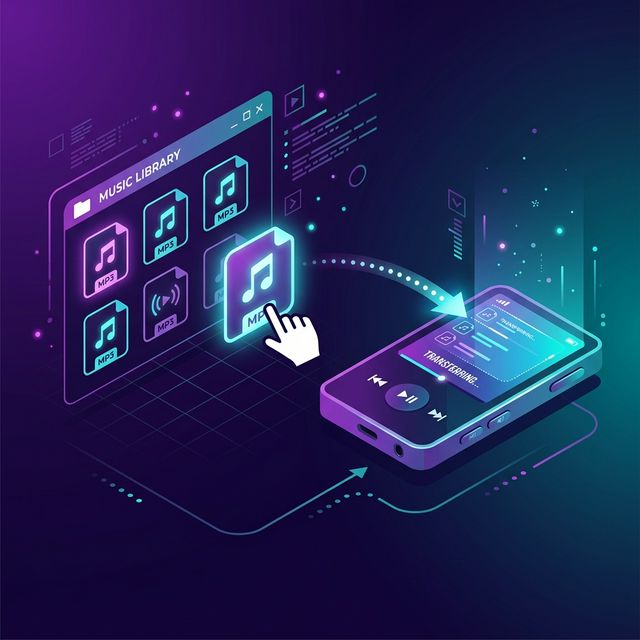
Quick Answer: To put music on an MP3 player: (1) Get MP3 files — use our free downloader for MP3 to convert videos, or buy from digital stores. (2) Connect your player via USB. (3) Drag and drop the files into the Music folder. Done!
So you have got an MP3 player and you want to fill it with music. Whether it is a brand new device or one you have had for years, the process of putting music on it is straightforward once you know the steps. This guide covers everything from getting your music files to transferring them, with tips for every type of player.
What You Need Before You Start
- An MP3 player — Any brand works (Sony, SanDisk, iPod, FiiO, etc.)
- A USB cable — Usually included with the player (Micro-USB or USB-C)
- A computer — Windows PC or Mac
- MP3 files — Your music collection in MP3 format
Step 1: Get Your Music in MP3 Format
The first step is to make sure you have music files on your computer. If you do not have any MP3 files yet, here are the best ways to get them:
Convert Online Videos to MP3
The quickest free method is to use an online downloader for MP3:
- Find a video with the song you want
- Copy the video URL
- Go to downloaderformp3.co.uk
- Paste the URL and click "Convert to MP3"
- Choose your quality (128 kbps for standard, 320 kbps for best)
- Download the MP3 file to your computer
Repeat for each song you want. Build up a collection on your computer before transferring to your player.
Get Free MP3 Downloads
Convert any video to MP3 — perfect for building your music collection.
Download MP3s Free →Buy from Digital Stores
| Store | Format | DRM-Free? | Price |
|---|---|---|---|
| iTunes Store | AAC (M4A) | Yes | £0.79-1.29/track |
| Amazon Music | MP3 | Yes | £0.79-1.29/track |
| Bandcamp | MP3/FLAC/WAV | Yes | Varies |
| 7digital | MP3 | Yes | £0.79-1.29/track |
Rip from CDs You Own
If you have a CD collection, you can rip them to MP3 using Windows Media Player, iTunes, or the free tool Exact Audio Copy. This is completely legal for CDs you own.
Important: Streaming Music Will Not Work
Songs from Spotify, Apple Music, Tidal, and YouTube Music are DRM-protected. They cannot be transferred to an MP3 player. You need actual MP3 files — either downloaded, purchased, or ripped from CDs.
Step 2: Connect Your MP3 Player to Your Computer
- Find the USB cable that came with your MP3 player
- Plug the small connector into your MP3 player
- Plug the full-size USB connector into your computer
- Your computer should detect it within a few seconds
On Windows
Open File Explorer (press Windows + E). Your player will appear under "This PC" as a removable drive, usually with the player's brand name.
On Mac
Your player should appear on the desktop or in the Finder sidebar. If it does not appear, you may need to install "Android File Transfer" (free from Google) for non-Apple players.
On Mac with an iPod
iPods are managed through iTunes (macOS Mojave and earlier) or Finder (macOS Catalina and later). Connect the iPod and it will appear in the sidebar.
Step 3: Transfer Your Music
For Standard MP3 Players (Drag-and-Drop)
- Double-click your MP3 player in File Explorer / Finder to open it
- Look for a folder called Music (create one if it does not exist)
- Open a second window showing your MP3 files on your computer
- Select the songs you want (Ctrl+A for all, or Ctrl+Click for specific songs)
- Drag and drop them into the Music folder on your player
- Wait for the transfer to finish (a progress bar will show)
For iPod (Using iTunes / Finder)
- Open iTunes or Finder
- Add your MP3 files to your iTunes library first (File → Add to Library)
- Select your iPod in the sidebar
- Go to the Music tab
- Check "Sync Music" and select which songs or playlists to sync
- Click Apply or Sync
Step 4: Safely Disconnect
This step is important to avoid corrupting your files:
- Windows: Click the "Safely Remove Hardware" icon in the system tray (bottom-right) → Click your device → Wait for the "safe to remove" message
- Mac: Click the eject ⏏ icon next to your device in Finder, or drag the device to the Bin
Never unplug the cable while files are still transferring — this can corrupt both the files and the player's storage.
Choosing the Right Quality
When converting music with our downloader for MP3, choose the right quality based on your needs:
| Quality | File Size | Best For |
|---|---|---|
| 64 kbps | ~0.5 MB/min | Audiobooks, podcasts |
| 128 kbps | ~1 MB/min | Standard music listening (recommended) |
| 192 kbps | ~1.5 MB/min | High-quality music |
| 320 kbps | ~2.5 MB/min | Audiophiles, best quality |
For most listeners, 128 kbps offers the ideal balance of quality and storage space. If your player has plenty of space (16GB+), go with 320 kbps for the best experience.
Tips for the Best Experience
- Name your files properly — Use "Artist - Song Title.mp3" format for easy browsing
- Create playlists — Organise songs into folders like "Workout", "Chill", "Favourites"
- Keep a backup — Store your MP3 collection on your computer as well as your player
- Check storage before transferring — Make sure your player has enough free space
- Update firmware — Keep your player's software up to date for the best performance
Frequently Asked Questions
Where do I get MP3 files to put on my player?
You can convert online videos to MP3 using a free tool like downloaderformp3.co.uk, buy digital downloads from stores like iTunes or Amazon, or rip audio from CDs you own.
Can I use Spotify songs on my MP3 player?
No. Spotify songs are DRM-protected and cannot be transferred to a standard MP3 player. You need DRM-free MP3 files, which you can get from our converter, digital music stores, or by ripping your own CDs.
How do I safely remove my MP3 player?
On Windows, click the "Safely Remove Hardware" icon in the system tray. On Mac, click the eject button next to the device in Finder. Never unplug while files are still transferring — this can corrupt your files.
My MP3 player shows no songs after transfer. What do I do?
First, restart the player and wait for it to rebuild its music library. If that does not work, ensure files are in MP3 format and placed in the Music folder (not a random directory). Some players have a "Refresh Library" option in their settings menu.
Conclusion
Putting music on an MP3 player is simple: get your MP3 files (use our free downloader for MP3), connect via USB, drag and drop, and safely eject. With the tips in this guide, you will have your player loaded with your favourite music in no time.
Start Building Your Collection
Convert videos to MP3 for free and load them onto your MP3 player today.
Get Free MP3s →