How Do I Load Music onto My MP3 Player? Complete Guide
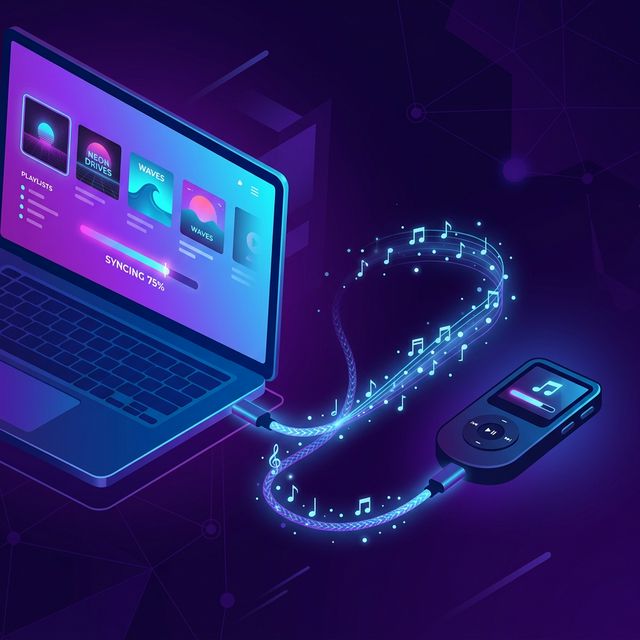
Quick Answer: Connect your MP3 player to your computer via USB, open it in File Explorer (Windows) or Finder (Mac), and drag-and-drop your MP3 files into the Music folder. Need MP3 files first? Use our free downloader for MP3 to convert any video to MP3.
MP3 players are making a comeback. With no notifications, no social media, and outstanding battery life, dedicated music players offer a distraction-free listening experience that smartphones cannot match. But loading music onto them can be confusing if you have never done it before.
This guide walks you through every step — from getting your music files to transferring them to your MP3 player.
Step 1: Get Your Music Files
Before you can load music onto your MP3 player, you need music files on your computer. Here are the most common sources:
Download from Online Videos
The easiest way to build your music library is to use a downloader for MP3. Visit downloaderformp3.co.uk, paste a video link, and download the audio as an MP3 file. This works with YouTube, SoundCloud, and dozens of other platforms.
Rip from CDs
If you have physical CDs, you can rip them using:
- Windows Media Player — Built into Windows. Insert CD → Click "Rip CD"
- iTunes — Insert CD → Click "Import CD" → Select MP3 format
- Exact Audio Copy — For audiophiles who want bit-perfect rips
Buy Digital Downloads
- iTunes Store / Apple Music — Purchase individual tracks or albums
- Amazon Music — Buy MP3 downloads
- Bandcamp — Buy directly from artists, often in multiple formats
- 7digital — DRM-free MP3 downloads
Need MP3 Files?
Convert any video to MP3 for free — perfect for loading onto your player.
Download MP3s →Step 2: Connect Your MP3 Player
- Find the USB cable — Most MP3 players use Micro-USB or USB-C
- Connect to your computer — Plug the small end into the player, the large end into your PC or Mac
- Wait for detection — Your computer should recognise the device within a few seconds
- If prompted, select "File Transfer" or "MTP" mode on the player
Where It Appears
| Operating System | Where to Find |
|---|---|
| Windows | File Explorer → This PC → [Player Name] |
| macOS | Finder sidebar or Desktop (may need Android File Transfer for some devices) |
| Linux | File Manager → Devices sidebar |
Step 3: Transfer Music
Drag-and-Drop Method (Simplest)
- Open your MP3 player's storage in File Explorer / Finder
- Navigate to the Music folder (create one if it does not exist)
- Open another window with your downloaded MP3 files
- Select the songs you want to transfer
- Drag them into the Music folder on your MP3 player
- Wait for the transfer to complete
- Safely eject the device before unplugging
Using Windows Media Player
- Open Windows Media Player
- Connect your MP3 player
- Click the Sync tab
- Drag songs from your library to the sync list
- Click Start Sync
Using iTunes (for iPod)
- Open iTunes
- Connect your iPod
- Select the device in iTunes
- Go to Music settings
- Choose "Sync entire music library" or select specific playlists
- Click Apply
Supported Music Formats
| Format | Support Level | Quality | Notes |
|---|---|---|---|
| MP3 | ✅ Universal | Good-Excellent | Works on every MP3 player |
| WMA | ✅ Most players | Good | Windows only format |
| WAV | ✅ Most players | Lossless | Very large file sizes |
| FLAC | ⚠️ Some players | Lossless | Check your player's specs |
| AAC/M4A | ⚠️ Some players | Excellent | iPods and newer players |
| OGG | ❌ Few players | Good | Limited support |
Tip: When in doubt, always use MP3 format. It is universally compatible with every MP3 player ever made. Our downloader for MP3 converts directly to MP3 format, so your files will work on any player.
Organising Your Music Library
For the best experience on your MP3 player, organise your music files properly:
- Create folders by artist or album — e.g., Music/Artist Name/Album Name/
- Use proper file names — "01 - Song Title.mp3" is better than "download(3).mp3"
- Add ID3 tags — Use a free tool like Mp3tag to add artist, album, and track info. Many MP3 players use these tags to build their library
Storage Capacity Guide
| Storage | Songs at 128 kbps | Songs at 320 kbps |
|---|---|---|
| 2 GB | ~500 | ~200 |
| 4 GB | ~1,000 | ~400 |
| 8 GB | ~2,000 | ~800 |
| 16 GB | ~4,000 | ~1,600 |
| 32 GB | ~8,000 | ~3,200 |
If storage is limited, download at 128 kbps — it sounds great and takes up much less space.
Troubleshooting
MP3 player not detected by computer
- Try a different USB cable or port
- Ensure the player is charged (some will not connect when dead)
- On Mac, install Android File Transfer for non-Apple devices
- Restart both the player and computer
Songs not appearing on the player
- Safely eject and reconnect
- Check the file format — convert to MP3 if needed
- Some players need to "refresh" or "update library" from their settings menu
- Make sure files are in the Music folder, not a random directory
Frequently Asked Questions
What music formats do MP3 players support?
Most MP3 players support MP3, WMA, and WAV. Some newer models also support FLAC, AAC, and OGG. MP3 is the safest choice for universal compatibility.
Why won't my MP3 player recognise the files?
The files may be in an unsupported format, stored in a subfolder the player cannot read, or the player needs to refresh its library. Try converting to standard MP3 format and placing files directly in the Music folder.
Can I load music from my phone to an MP3 player?
Some MP3 players support Bluetooth file transfer. Alternatively, download MP3 files to your phone, then transfer via a USB OTG cable to the MP3 player.
How many songs can my MP3 player hold?
A 4GB MP3 player holds approximately 1,000 songs at 128 kbps. An 8GB holds about 2,000, and a 16GB holds about 4,000 songs. Higher quality files (320 kbps) take roughly 2.5 times more space.
Do I need special software to load music?
Most MP3 players work with simple drag-and-drop — no special software needed. Just connect via USB and copy your MP3 files to the Music folder.
Conclusion
Loading music onto your MP3 player is as simple as connect, drag, and drop. Start by getting your music files — use our free downloader for MP3 to convert videos to MP3, buy from digital stores, or rip from CDs. Then connect your player via USB and copy the files over. Make sure to use MP3 format for the best compatibility.
Build Your MP3 Collection
Convert any video to MP3 for free — ready to load onto your player.
Get MP3 Files →